Role Management
The Role Management page lets you assign practitioners to organizations and configure their permissions. Open it from Administration > Role Management in the sidebar.
Requires the practitioner-role-manager UI feature code or administrator access.
Overview
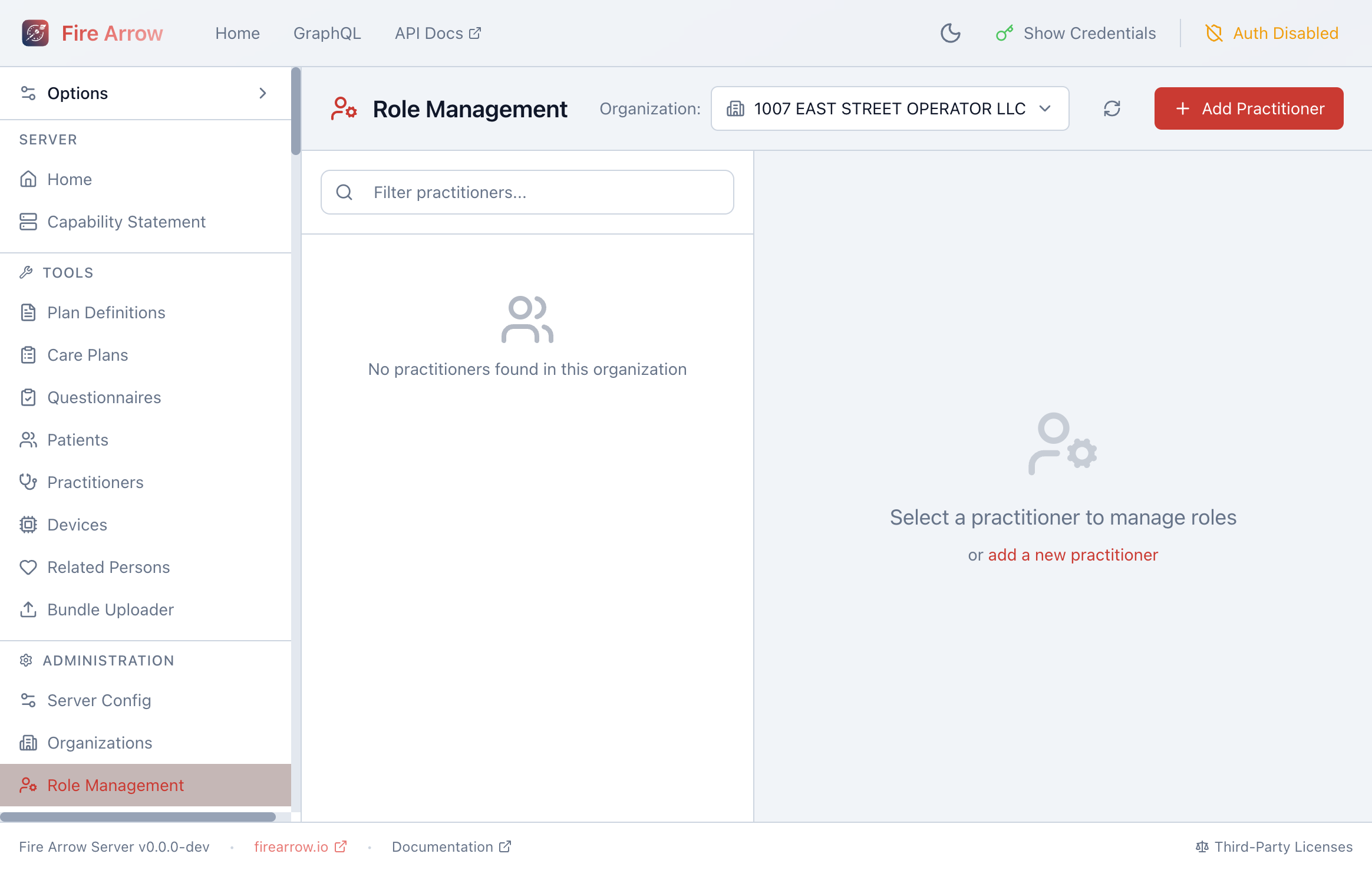
The page has three areas:
- Organization selector in the header - choose which organization to manage roles for.
- Practitioner list on the left - shows practitioners assigned to the selected organization. Use the search box to filter by name.
- Role detail panel on the right - displays and edits the selected practitioner's role configuration.
Selecting an Organization
Use the Organization dropdown at the top of the page to switch between organizations. The practitioner list updates to show only practitioners with roles in that organization.
Adding a Practitioner
Click + Add Practitioner to assign a new practitioner to the current organization. Search for the practitioner by name, then configure their role.
Configuring a Role
Select a practitioner from the list to view and edit their PractitionerRole:
Role Codes
Assign one or more role codes that describe the practitioner's function (e.g. doctor, nurse, admin).
Clinical Feature Codes
Clinical feature codes control which FHIR operations the practitioner can perform. These are evaluated by the server's authorization engine.
UI Feature Codes
UI feature codes control which sections of the Web UI are visible. Common codes include:
| Feature Code | Access Granted |
|---|---|
patient-viewer | View patients (read-only) |
patient-manager | View and edit patients |
practitioner-viewer | View practitioners (read-only) |
practitioner-manager | View and edit practitioners |
organization-manager | Manage organizations |
practitioner-role-manager | Manage roles |
bundle-upploader | Upload bundles |
Validity Period
Set a start and end date for the role assignment. This is useful for temporary assignments, locum practitioners, or scheduled role changes.