Resource Browser
The Resource Browser is a generic tool for searching, viewing, editing, and deleting any FHIR resource type on the server. You reach it by clicking any resource type in the sidebar's Resources list.
Overview
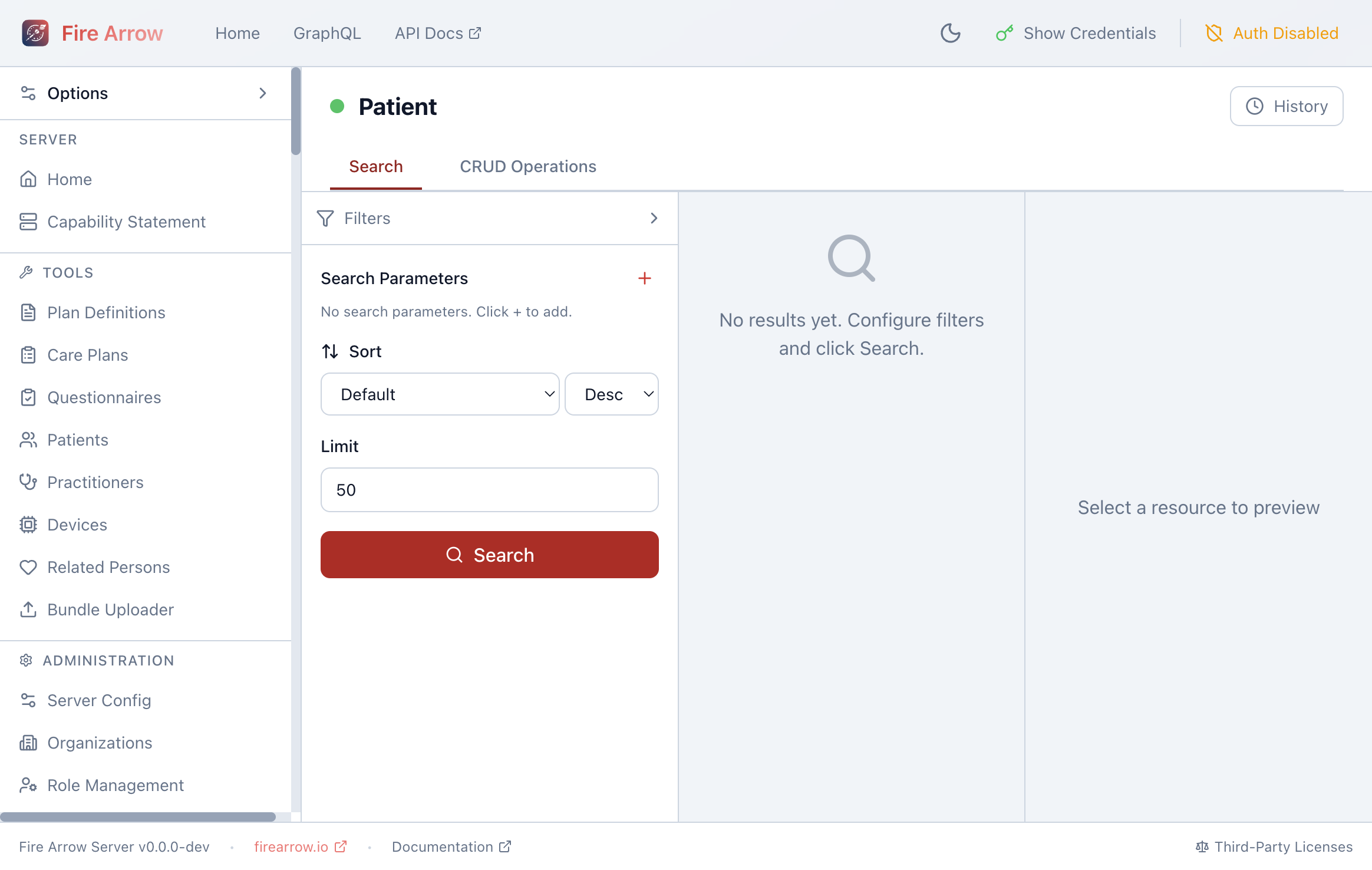
The browser opens with the selected resource type (e.g. "Patient") and provides two tabs:
- Search - query resources using FHIR search parameters.
- CRUD Operations - create, read, update, and delete individual resources by ID.
Searching Resources
Adding Search Parameters
Click the + button next to "Search Parameters" to add a filter. Each parameter corresponds to a FHIR search parameter defined for the resource type (e.g. name, birthdate, identifier for Patient).
Sort and Limit
- Sort - choose a sort field and direction (ascending or descending).
- Limit - set the maximum number of results to return (default: 50).
Click Search to execute the query. Results appear in the center panel as a list of resource IDs.
Viewing a Resource
Click a result to display the full resource in the right panel as formatted JSON. From this view you can:
- Edit the resource JSON directly and save changes.
- Delete the resource.
- View and manage attachments (for resource types that support them, such as DocumentReference).
CRUD Operations
Switch to the CRUD Operations tab to work with individual resources by their FHIR ID:
- Read - fetch a resource by ID.
- Create - submit a new resource from JSON.
- Update - replace an existing resource.
- Delete - remove a resource by ID.
Resource History
Click the History button in the top-right corner to view the change history for the current resource type. History views are available at three levels:
- Instance history - all versions of a single resource.
- Type history - all changes to a specific resource type.
- Server history - all changes across the entire server (accessible from the Home page).