Questionnaires
The Questionnaire page lets you create, import, and manage FHIR Questionnaires. Questionnaires define structured forms that patients or practitioners can fill out, producing QuestionnaireResponse resources. Open this page from Tools > Questionnaires in the sidebar.
List View
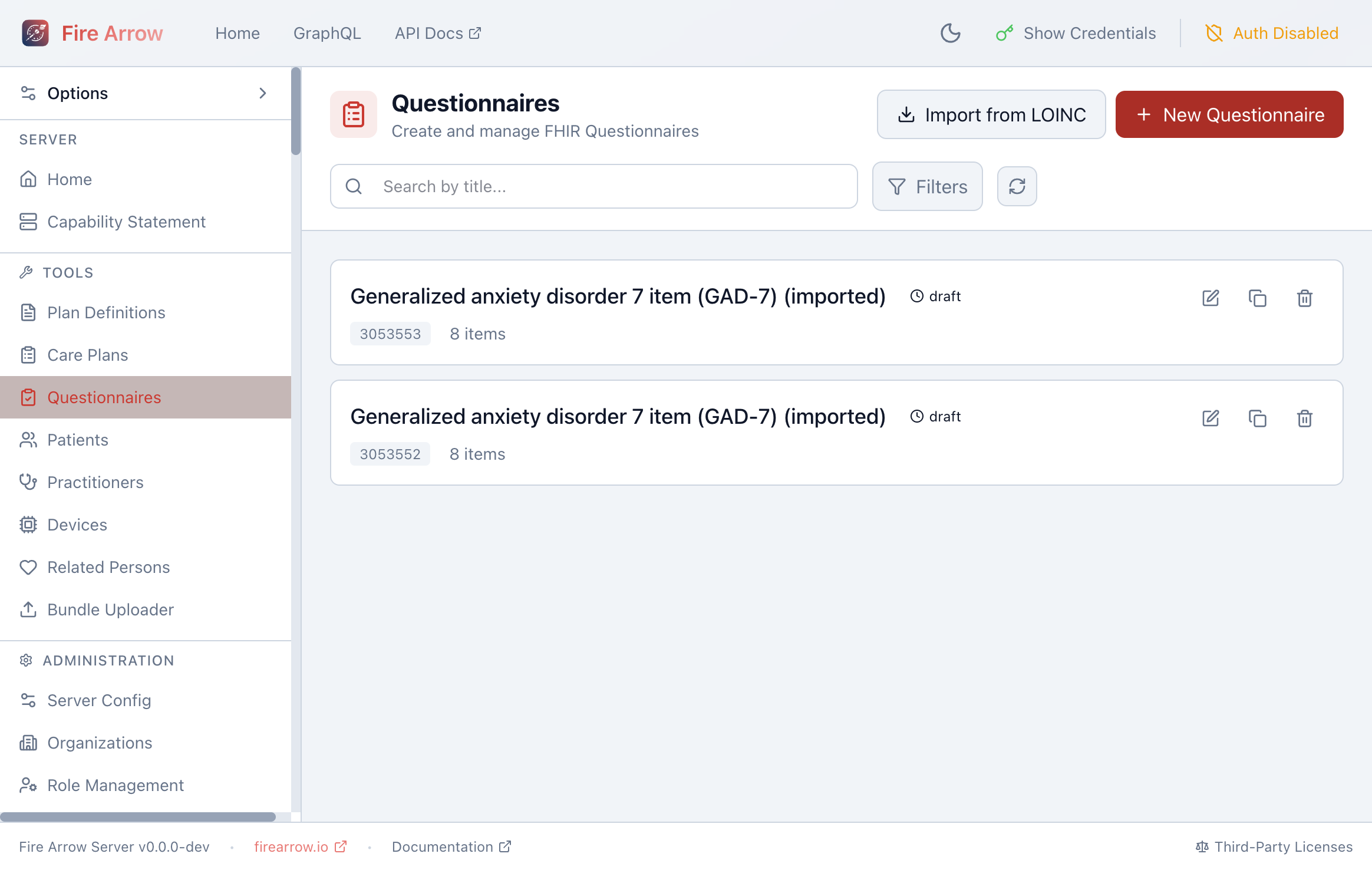
The list shows all Questionnaires with:
- Title and status (draft, active, retired).
- FHIR ID and item count - how many questions/items the questionnaire contains.
Each entry has action icons for Edit, Duplicate, and Delete.
The page header provides two creation paths:
- Import from LOINC - import a standardized questionnaire from the LOINC registry.
- + New Questionnaire - create a questionnaire from scratch using the builder.
Questionnaire Builder
Click the edit icon or + New Questionnaire to open the builder. The builder provides a visual interface for constructing questionnaires:
Questionnaire Metadata
- Title and description.
- Status (draft, active, retired).
- URL and version for canonical identification.
Adding Items
Each item in a questionnaire represents a question or a grouping element. For each item you can configure:
- Link ID - a unique identifier within the questionnaire.
- Text - the question text displayed to the user.
- Type - the expected answer type:
string,text- free-text answers.integer,decimal- numeric answers.boolean- yes/no answers.date,dateTime,time- temporal answers.choice,open-choice- selection from a list of options.display- read-only text (instructions, headings).group- a container for nested items.
- Required - whether the item must be answered.
- Repeats - whether the item can have multiple answers.
- Answer options - for choice-type items, define the selectable options with display text and codes.
Nested Groups
Items of type group can contain child items, allowing you to build multi-section forms with logical groupings.
LOINC Import
Click Import from LOINC to search the LOINC registry for standardized questionnaires (e.g. PHQ-9, GAD-7). Select a questionnaire from the search results to import it as a draft on your server. You can then edit it further using the builder.
Preview
The builder includes a preview mode that renders the questionnaire as it would appear to an end user filling it out. Use this to verify the form layout and question flow before publishing.