Plan Definitions
Plan Definitions are reusable templates that describe a structured set of clinical (or administrative) actions to be performed. In healthcare, they encode the kind of knowledge that clinicians carry in their heads - treatment protocols, order sets, screening guidelines, and decision-support rules - and make it computable so that a system can apply it consistently to every patient who qualifies.
Fire Arrow Server provides a full-featured visual editor for creating and managing Plan Definitions, and an Apply workflow that turns them into patient-specific Care Plans. Open this page from Tools > Plan Definitions in the sidebar.
What Are Plan Definitions Used For?
In the HL7 FHIR standard, a Plan Definition is a definition resource - it does not represent an action that has been taken or an intent to act. Instead, it is a blueprint that can be applied to produce concrete orders, tasks, and care plans for a specific patient or situation.
Common clinical use cases include:
- Treatment protocols - a step-by-step plan for managing a condition such as diabetes, hypertension, or post-surgical recovery, including when to order labs, adjust medications, and schedule follow-ups.
- Order sets - a pre-approved bundle of orders that a clinician can apply in one go, for example an "Admission for Chest Pain" order set that includes ECG, troponin labs, aspirin, and bed rest.
- Clinical decision support rules - automated recommendations that fire when certain conditions are met, such as suggesting a screening test when a patient reaches a certain age, or alerting a prescriber to a drug interaction.
- Care pathways - multi-week or multi-month plans covering an entire episode of care, such as a chemotherapy regimen with cycles, rest periods, and lab checks.
- Preventive care guidelines - screening schedules (e.g. mammography every two years for patients over 50) and vaccination programs.
- Workflow automation - orchestrating handoffs between departments (e.g. when a lab result arrives, notify the ordering physician and schedule a follow-up appointment).
Plan Definition Types
Every Plan Definition has a type that describes its intended use. The editor supports four types:
| Type | When to use it |
|---|---|
| Order Set | A pre-defined group of orders for a clinical situation. Think of it as a checklist: when a patient is admitted with a certain diagnosis, the order set lists every medication, lab, and instruction that should be placed. Clinicians can accept, modify, or remove individual items. |
| Clinical Protocol | A sequence of activities with timing, preconditions, and decision points. Protocols model the full journey of managing a condition, including branching paths based on test results or patient responses. |
| ECA Rule | An Event-Condition-Action rule: on a triggering event, if a condition is true, then perform an action. Used for clinical decision support - for example, "When a new MedicationRequest for opioids is created, if the patient has no urine drug screen in the last 12 months, then suggest ordering one." |
| Workflow Definition | Describes the steps, decision points, and handoffs in a multi-actor process. Useful for modelling referral workflows, discharge planning, or any process that spans roles and systems. |
List View
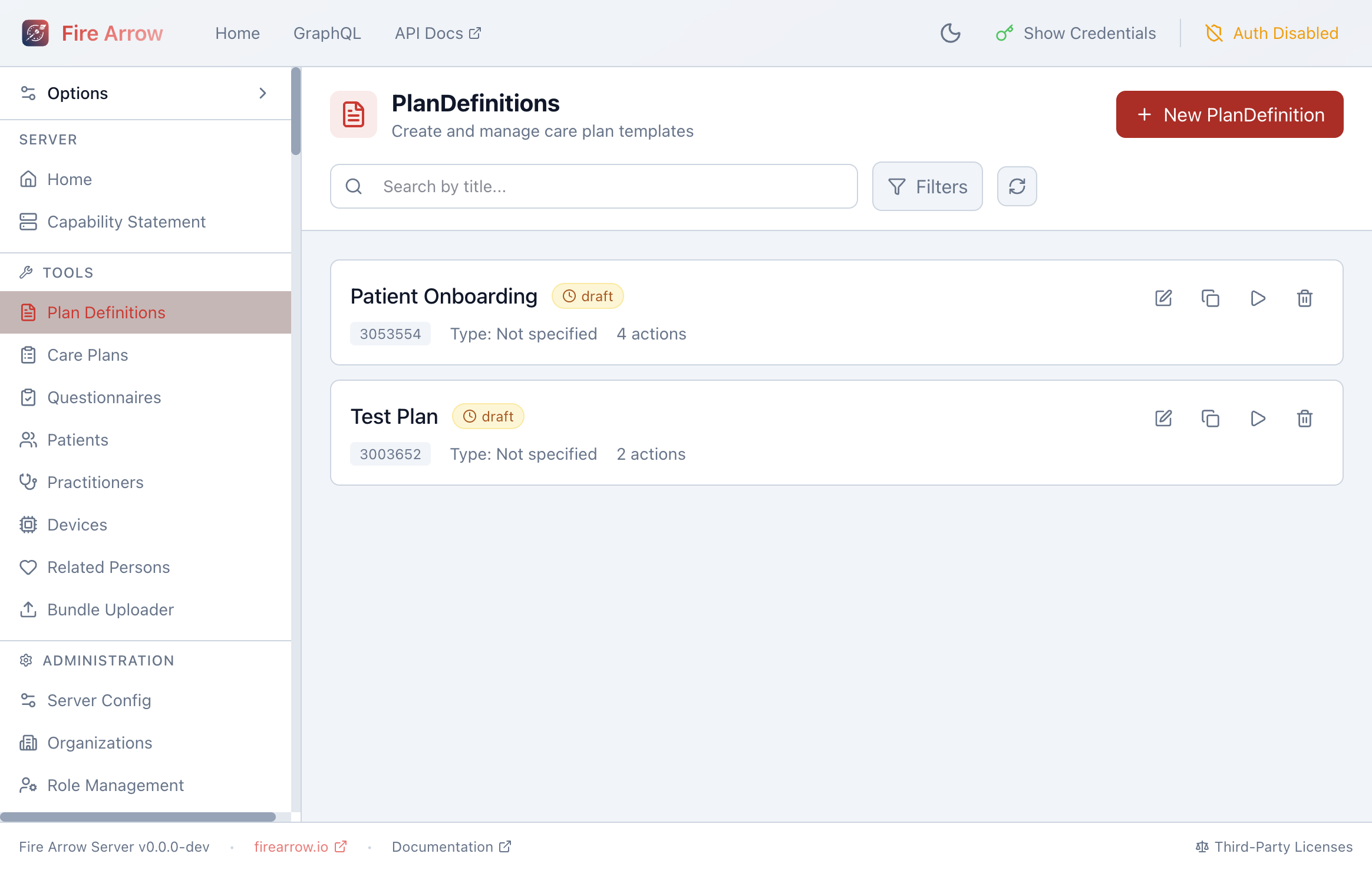
The list shows all Plan Definitions on the server with:
- Title and status badge (draft, active, retired).
- FHIR ID and type.
- Action count - how many actions the plan defines.
Each entry has action icons on the right:
- Edit - open the structured editor.
- Duplicate - create a copy of the Plan Definition.
- Apply - start the Apply-to-Patient workflow.
- Delete - remove the Plan Definition.
Use the search bar to filter by title, and the Filters button to narrow by status.
Click + New Plan Definition to create a new template from scratch.
Structured Editor
Click the edit icon on any Plan Definition to open the structured editor. The editor is divided into three areas: an action tree on the left, the detail panel on the right, and a center area that switches between an overview, the dependency canvas, a JSON view, and a validation panel.
Metadata
When no action is selected, the right panel shows the plan's metadata:
| Field | Purpose |
|---|---|
| Title | Human-readable name displayed in lists and Care Plans. |
| Name | Machine-friendly identifier (no spaces). |
| Subtitle | Optional secondary title for additional context. |
| Status | Publication lifecycle: Draft, Active, Retired, or Unknown. Only active plans should be applied to patients in production. |
| Type | One of the four plan types described above. |
| Version | A version string you manage (e.g. "1.0.0"). |
| Experimental | Flag for plans that are for testing only and should not be used clinically. |
| Description | Free-text explanation of what the plan does and when it should be used. |
| Purpose | Why the plan exists - the clinical rationale. |
| Usage | Guidance on how to apply the plan in practice. |
| Publisher | Name of the authoring organization or individual. |
| Copyright | Licensing and usage restrictions. |
| Date | Last modification date. |
| Approval Date | When the plan was formally approved. |
| Last Review Date | When the plan was last clinically reviewed. |
| Canonical URL | A globally unique URL that identifies this plan across systems. Other resources reference the plan by this URL. |
Actions
Actions are the heart of a Plan Definition. Each action represents a single step - an order to place, a questionnaire to complete, a decision to make, or a group of related sub-steps.
Adding and Organizing Actions
- Click + Add Action at the bottom of the action tree to add a root-level action.
- Right-click an action to Add sub-action, Duplicate, Copy, Cut, Paste, or Delete it.
- Drag actions to reorder them or nest them under other actions.
- Actions can be nested to any depth, which is useful for grouping related steps (e.g. "Lab Orders" containing individual lab tests, or "Day 1 of Cycle" containing all medications for that day).
Action Properties
Select an action in the tree to edit its properties in the detail panel:
| Field | Purpose |
|---|---|
| Title | Short label shown in the action tree (e.g. "Order CBC" or "Complete PHQ-9"). |
| Description | Longer explanation of what this action entails. |
| Text Equivalent | A plain-language summary used when the structured data cannot be interpreted by the receiving system. |
| Priority | How urgently this action should be performed: Routine, Urgent, ASAP, or Stat. |
| Action Code | A coded type describing what kind of operation this action performs. Suggested codes include create (create a new resource), update (modify an existing resource), remove (delete a resource), and fire-event (trigger a notification). You can also enter custom codes. |
| Reason | Why the action should be performed, typically as a SNOMED CT code (e.g. a diagnosis that justifies a treatment). The editor provides common suggestions. |
Linking to Definitions
Each action can reference an external definition that describes the concrete work to be done. The editor supports three types of linked definitions:
- ActivityDefinition - a reusable template for a specific clinical request. When the plan is applied, the ActivityDefinition is used to generate a concrete resource such as a MedicationRequest, ServiceRequest, or Task for the patient. For example, an ActivityDefinition for "Aspirin 81mg daily" produces a MedicationRequest when the plan is applied.
- PlanDefinition - a reference to another Plan Definition, enabling composition. For example, a master "Diabetes Management" plan might reference separate sub-plans for "Insulin Titration" and "Foot Care Screening."
- Questionnaire - a reference to a FHIR Questionnaire that the patient or clinician should complete as part of this action, such as a PHQ-9 depression screening or a pre-operative checklist.
To link a definition, use the Definition section of the action detail panel. You can search for existing resources on the server by their canonical URL or title. The editor shows a preview of the linked resource.
ActivityDefinitions are the bridge between a plan and the actual clinical requests it produces. When building a plan that should generate medication orders, lab requests, or referrals, create ActivityDefinitions for each and link them to the appropriate actions.
Conditions (Conditional Logic)
Conditions let you make an action dependent on clinical criteria. For instance, you might only want to order a liver function test if the patient is on a hepatotoxic medication, or skip a screening step if the patient already had one recently.
Each action can have multiple conditions. Every condition has a kind and an expression:
Condition kinds:
| Kind | Effect |
|---|---|
| Applicability | Determines whether the action is relevant at all. If the expression evaluates to false, the action is excluded entirely when the plan is applied. |
| Start | Controls when the action can begin. The action is included but held until the condition becomes true. |
| Stop | Controls when the action should end. Once the condition becomes true, the action is terminated. |
Expression languages:
- FHIRPath (
text/fhirpath) - the most common choice. FHIRPath is a query language for FHIR resources. The editor provides quick-insert templates for common clinical checks:- Patient age (e.g.
%subject.birthDatecalculations) - Patient gender
- Active conditions (checking for a specific diagnosis)
- Active medications (checking for a specific drug)
- Observation thresholds (e.g. HbA1c above a value)
- Pregnancy status
- Patient age (e.g.
- CQL (
text/cql) - Clinical Quality Language, a more powerful expression language used in clinical quality measures and decision support. - FHIR Query (
application/x-fhir-query) - a FHIR search URL that returns data used to evaluate the condition.
Example: To make an action apply only to patients aged 50 or older, add an applicability condition with the FHIRPath expression that checks the patient's age against a threshold.
Related Actions (Dependencies and Sequencing)
Related actions define the order in which actions should occur. Instead of relying purely on the list order, you can create explicit temporal relationships between any two actions.
For each related action you specify:
- Target action - the action this one depends on.
- Relationship - how the two actions relate in time:
| Relationship | Meaning |
|---|---|
| Before Start | This action must happen before the target starts. |
| Before | This action happens before the target. |
| Before End | This action must happen before the target ends. |
| Concurrent with Start | This action starts at the same time as the target. |
| Concurrent | This action runs in parallel with the target. |
| Concurrent with End | This action runs and ends together with the target. |
| After Start | This action starts after the target has started. |
| After | This action happens after the target completes. |
| After End | This action begins after the target has ended. |
- Offset - an optional time offset. For example, "start this action 24 hours after the target ends." Offsets can be specified as a fixed duration or as a range.
The Canvas tab in the center area visualizes these dependencies as a graph, making it easy to see the flow of a complex protocol at a glance.
Example: In a chemotherapy regimen, you might define that the anti-nausea medication action has a "concurrent-with-start" relationship with the chemotherapy infusion action, and a follow-up blood draw has an "after-end" relationship with a 48-hour offset.
Timing and Scheduling
Each action can specify when it should happen using one of several timing modes. The editor lets you pick one mode at a time:
| Mode | Use case | What you configure |
|---|---|---|
| Date/Time | A single specific moment | A date and time. |
| Period | A time window | Start and end date/times. |
| Duration | How long the action takes | A numeric value and unit (seconds, minutes, hours, days, weeks, months, years). |
| Age | Patient age trigger | A numeric value and unit (e.g. "at age 50 years"). |
| Range | A flexible time window | Low and high values with units. |
| Repeating Schedule | Recurring activities | A full repeat schedule (see below). |
Repeating Schedules
The repeating schedule is the most powerful timing option and is commonly used for recurring clinical activities. It includes:
- Frequency and period - how often the action repeats. For example, "2 times per day" (frequency=2, period=1, periodUnit=day), or "once per week."
- Maximum frequency - an upper bound on how often the action can occur.
- Count and maximum count - the total number of occurrences (e.g. "take for 10 days" means count=10 with a period of 1 day).
- Day of week - restrict to specific days (e.g. Monday, Wednesday, Friday).
- Time of day - specific times when the action should occur (e.g. 08:00 and 20:00 for a twice-daily medication).
- Event timing - codes that relate to daily routines: morning, noon, afternoon, evening, night, or relative to meals (before/after/with breakfast, lunch, dinner) and sleep.
- Offset - minutes before or after an event timing (e.g. "30 minutes before breakfast").
- Bounds - limits on the overall repeat: a bounding period (start/end dates), a bounding duration (e.g. "for 6 months"), or a bounding range.
- Duration per occurrence - how long each individual occurrence takes (e.g. "30-minute infusion").
The editor displays a human-readable timing preview that summarizes the schedule in plain language.
Example: "Take twice daily at 08:00 and 20:00, Monday through Friday, for 4 weeks" would be configured as: frequency=2, period=1 day, timeOfDay=[08:00, 20:00], dayOfWeek=[mon, tue, wed, thu, fri], boundsDuration=4 weeks.
Triggers
Triggers define events that cause the action to be initiated, independently of timing. Each trigger has a type:
- Named Event - fires when a specific named event occurs in the system. The editor provides suggestions for common event names.
- Periodic - fires at a specific date/time (similar to a one-shot timer).
- Data triggers (data-changed, data-added, data-modified, data-removed, data-accessed) - fire when data of a specified type changes. For example, "when a new Observation is created" or "when a MedicationRequest is modified." You can optionally add a FHIRPath condition to further filter which data changes should trigger the action.
Triggers are particularly useful for ECA rules where the "Event" component is what starts the decision-support process.
Participants
Specify who should perform each action by adding participants. Each participant entry includes:
- Type - the kind of actor: Patient, Practitioner, Related Person (e.g. a caregiver or family member), or Device.
- Role - a more specific role from a standard code system, such as "General Practitioner", "Nurse", or "Pharmacist."
Example: A home-monitoring action might have the patient as the primary participant, with a nurse practitioner as a secondary participant for review.
Behaviors
Behaviors control how groups of actions are presented to and processed by clinicians. They are especially important for order sets where a clinician selects from a menu of options.
Grouping Behavior
Defines how sub-actions within a group are displayed:
| Value | Effect |
|---|---|
| Visual Group | Sub-actions are displayed as a visual group (e.g. in a box or under a heading). |
| Logical Group | Sub-actions are logically related and may be shown as a group, but this is not required. |
| Sentence Group | Sub-actions are variations of the same order (e.g. "Aspirin 500mg twice daily" vs. "Aspirin 300mg three times daily"). Typically paired with a selection behavior of At Most One. |
Selection Behavior
Defines how many actions within a group the clinician can or must select:
| Value | Effect |
|---|---|
| Any | The clinician may select any number of actions, including none. |
| All | All actions in the group must be selected together. |
| All or None | Either all actions are selected, or none are. |
| Exactly One | The clinician must pick exactly one action from the group. |
| At Most One | The clinician may pick zero or one action. |
| One or More | The clinician must pick at least one action, and may pick more. |
Required Behavior
Defines whether an action is mandatory:
| Value | Effect |
|---|---|
| Must | The action must be included - the clinician cannot skip it. |
| Could | The action is optional. |
| Must Unless Documented | The action must be included unless the clinician documents a reason for omitting it. |
Precheck Behavior
Suggests whether the action should be pre-selected when presented to the clinician:
| Value | Effect |
|---|---|
| Yes | The action is commonly selected and should be pre-checked for convenience. |
| No | The action is less commonly selected and should not be pre-checked. |
Cardinality Behavior
Controls how many times the action can be performed:
| Value | Effect |
|---|---|
| Single | The action may only be performed once. |
| Multiple | The action may be performed multiple times. |
Example: In a "Post-Surgical Pain Management" order set, you might have a group of analgesic options with selection behavior Exactly One (the clinician must choose one pain medication), where Acetaminophen has precheck Yes (it's the default), and an anti-nausea medication with required behavior Must (it must always be included).
Goals
Plan Definitions can define goals - clinical outcomes the plan is trying to achieve. Goals appear in the left panel alongside actions.
Each goal has:
- Description - what the goal aims to achieve (e.g. "Reduce HbA1c below 7%").
- Category - the type of goal: dietary, safety, behavioral, nursing, physiotherapy, or other.
- Priority - high, medium, or low.
- Start - when pursuit of the goal should begin.
- Targets - measurable criteria for success, each with:
- A measure (what to track, e.g. HbA1c level),
- A detail (the target value as a quantity, range, or text), and
- A due duration (by when the target should be met).
Actions can be linked to goals to indicate that performing the action contributes to achieving the goal. Use the Goals section in the action detail panel to create these links.
Dynamic Values
Dynamic values let you customize the resources that are generated when the plan is applied. Each dynamic value specifies:
- Path - which field of the generated resource to set (e.g.
status,priority,subject). - Expression - a FHIRPath or CQL expression that computes the value at apply-time.
The editor provides suggested paths grouped by the type of resource the action is expected to produce:
- ServiceRequest fields: status, intent, priority, subject, requester, code, occurrence, and more.
- MedicationRequest fields: status, intent, priority, subject, medication, dosage instructions, and more.
- Task fields: status, intent, priority, for (subject), owner, description, and more.
- CarePlan fields: status, intent, subject, period, and more.
Example: To automatically set the priority of a generated ServiceRequest based on the patient's risk level, add a dynamic value with path priority and a FHIRPath expression that evaluates the patient's data.
Input and Output Data Requirements
Actions can declare what data they need (inputs) and what data they produce (outputs). Each data requirement specifies:
- Type - the FHIR resource type (the editor offers quick chips for common types: Patient, Observation, Condition, MedicationRequest, Procedure, DiagnosticReport, Encounter, AllergyIntolerance, Immunization, CarePlan).
- Additional filtering criteria to narrow down the data.
These declarations help systems understand the data dependencies between actions and can be used to pre-fetch data or validate that required information is available before applying the plan.
Canvas View
The Canvas tab in the center area renders a visual dependency graph of all actions and their relationships. This is invaluable for complex protocols where understanding the flow at a glance is important. Actions appear as nodes, and related-action dependencies appear as directed edges with their relationship type and offset labels.
JSON Editor
The JSON tab provides direct access to the full FHIR Plan Definition resource in JSON format. Every field in the FHIR specification is available here, including fields not exposed in the structured forms (such as library, relatedArtifact, transform, and documentation). Changes in the JSON editor are reflected in the structured editor and vice versa.
Validation
The Validate tab runs a set of checks on your Plan Definition:
- Duplicate action IDs.
- Invalid action references (e.g. a related action pointing to a non-existent action).
- Circular dependencies between actions.
- Other structural issues.
Fix any reported issues before applying the plan to patients.
Apply to Patient
The Apply workflow generates a Care Plan from a Plan Definition for a specific patient:
- Click the play icon on a Plan Definition in the list (or use the Apply button).
- Select a patient - search for the patient who should receive the care plan.
- Review the generated Care Plan activities.
- Confirm to create the Care Plan on the server.
The resulting Care Plan will contain activities derived from each action in the Plan Definition, with timing adjusted relative to the plan start date. The Care Plan references the original Plan Definition, so you can trace which template was used.
Fire Arrow Server's $apply operation supports timezone-aware scheduling and propagates extensions from the Plan Definition to the generated Care Plan. See the Care Plan Events documentation for details on automated task scheduling.
Clinical Examples
The following examples illustrate how Plan Definitions can model real-world clinical scenarios.
Example 1: Post-Surgical Recovery Protocol
A hospital creates a Clinical Protocol for knee replacement recovery:
- Action 1 - Pain Management (group, selection behavior: Exactly One)
- Sub-action: Acetaminophen 1g every 6 hours (precheck: Yes, linked ActivityDefinition)
- Sub-action: Ibuprofen 400mg every 8 hours (precheck: No)
- Action 2 - Physical Therapy Assessment (related: After Action 1, offset: 24 hours)
- Linked Questionnaire: post-op mobility assessment
- Participant: Physiotherapist
- Action 3 - Follow-up Appointment (related: After Action 2, offset: 2 weeks)
- Linked ActivityDefinition: ServiceRequest for orthopedic follow-up
- Condition (applicability): only if the mobility assessment score is below threshold
Example 2: Diabetes Screening Order Set
A primary care clinic builds an Order Set for annual diabetes screening:
- Action 1 - HbA1c Lab Order (required: Must)
- Linked ActivityDefinition generates a ServiceRequest for HbA1c
- Action 2 - Fasting Glucose (required: Could, precheck: No)
- Linked ActivityDefinition generates a ServiceRequest for fasting glucose
- Action 3 - Foot Exam Referral (required: Must Unless Documented)
- Condition (applicability): patient has had diabetes for more than 1 year
- Linked ActivityDefinition generates a ServiceRequest for podiatry referral
- Action 4 - Eye Exam Referral (required: Must Unless Documented)
- Timing: repeating schedule, once per year
- Condition (applicability): no ophthalmology visit in the last 12 months
Example 3: Medication Monitoring ECA Rule
A clinical decision support team creates an ECA Rule for liver function monitoring:
- Trigger: data-added on MedicationRequest (when a new medication is prescribed)
- Condition (applicability): the prescribed medication is in a list of hepatotoxic drugs AND the patient has no ALT/AST result in the last 3 months
- Action: suggest ordering a liver function panel
- Linked ActivityDefinition generates a ServiceRequest for LFTs
- Priority: Urgent
Example 4: Home Monitoring Care Pathway
A telehealth program creates a Clinical Protocol for remote blood pressure monitoring:
- Goal: Reduce systolic blood pressure below 140 mmHg within 3 months
- Action 1 - Daily BP Measurement (cardinality: Multiple)
- Timing: repeating schedule, once daily at 08:00, bounds period: 3 months
- Participant: Patient
- Linked Questionnaire: blood pressure reading form
- Goal link: targets the blood pressure goal
- Action 2 - Weekly Nurse Review (related: runs Concurrent with Action 1)
- Timing: repeating schedule, once per week on Monday
- Participant: Nurse Practitioner
- Condition (start): at least 5 readings have been submitted
- Action 3 - Medication Adjustment (related: After Action 2)
- Condition (applicability): average systolic > 140 over last 7 readings
- Linked ActivityDefinition generates a MedicationRequest adjustment
- Dynamic value: sets the medication dose based on current readings