Overview
Fire Arrow Server ships with a built-in web administration interface that lets you browse, create, and manage FHIR resources without writing any code. This section walks you through every feature available in the UI.
Accessing the Web UI
Open your browser and navigate to:
http://<your-server>:8080/admin/
The server redirects the root URL (/) to /admin/ automatically. Any modern browser (Chrome, Firefox, Safari, Edge) is supported.
When authentication is disabled, the UI grants full access to all features. In production with authentication enabled, visible sections depend on the roles assigned to your account.
Layout
The interface is divided into three main areas:
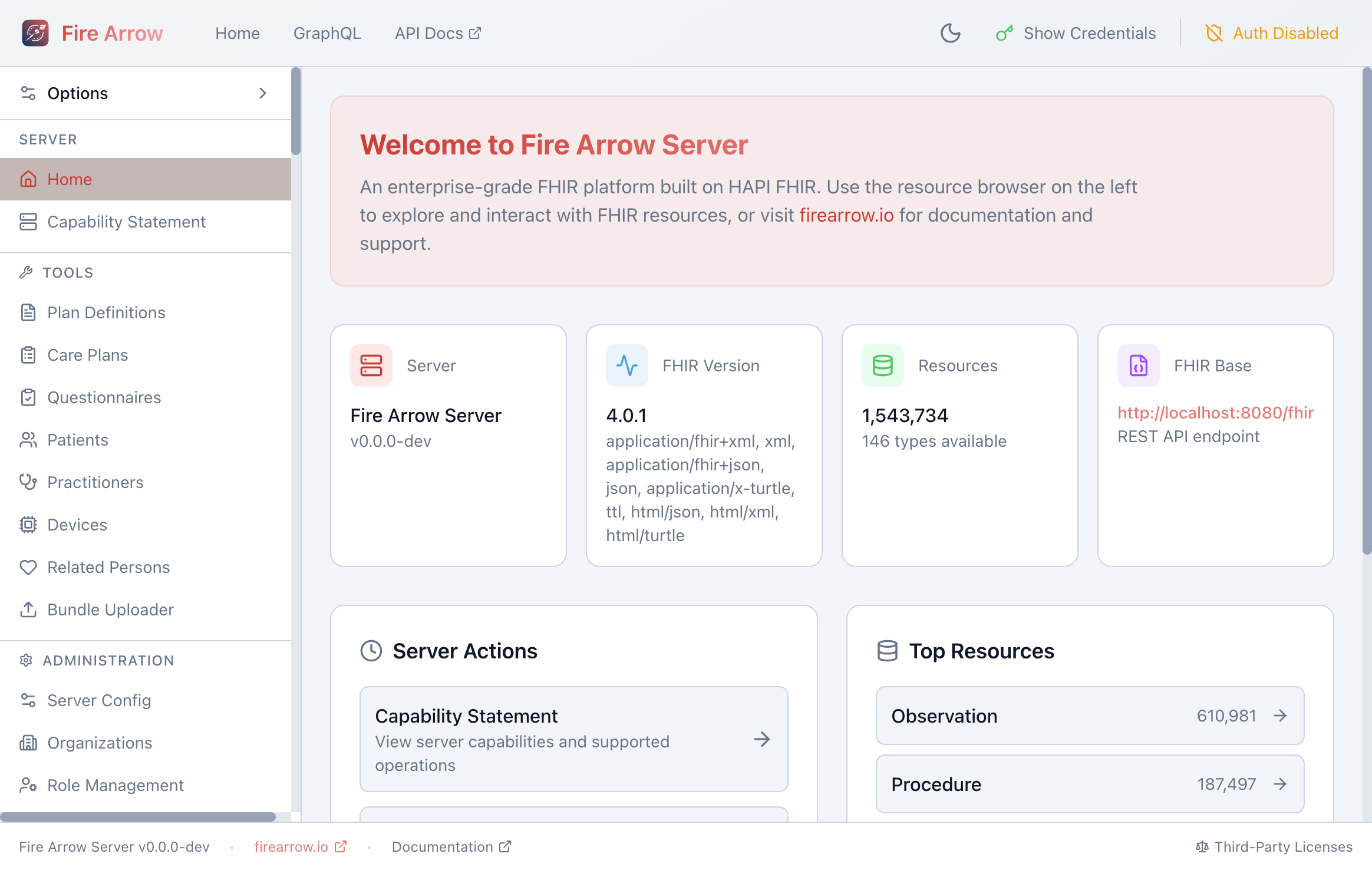
Header
The top bar contains:
- Fire Arrow logo - click to return to the home page.
- Home - navigates to the dashboard.
- GraphQL - opens the built-in GraphQL playground (visible only when GraphQL is enabled on the server).
- API Docs - opens the Swagger UI for the FHIR REST API in a new tab.
- Dark / light mode toggle - switches the UI theme.
- Show Credentials - displays the current authentication token (useful for copying into API calls).
- Auth status - shows whether authentication is enabled or disabled.
Sidebar
The left sidebar organizes navigation into three sections:
| Section | Links | Purpose |
|---|---|---|
| Server | Home, Capability Statement | Server dashboard and metadata |
| Tools | Plan Definitions, Care Plans, Questionnaires, Patients, Practitioners, Devices, Related Persons, Bundle Uploader | Clinical data management |
| Administration | Server Config, Organizations, Role Management | Server and access control settings |
Below the navigation links the sidebar also shows a Resources list with every FHIR resource type on the server and its instance count. Click any resource type to open it in the Resource Browser.
Main Content Area
The center of the screen displays the active page. On the home screen you will see:
- Server information cards - server name and version, FHIR version, total resource count, supported formats, and the REST API base URL.
- Server Actions - quick links to the Capability Statement, Server History, and API Documentation.
- Top Resources - the five resource types with the highest instance count, for quick access.
Options
Click Options in the sidebar to expand FHIR encoding preferences that apply to all API calls the UI makes:
- Encoding - choose JSON or XML.
- Pretty print - toggle formatted output.
- Summary mode - request
_summaryvariants (true, text, data, count).
Feature Visibility
When authentication is enabled, the sidebar only shows sections you have permission to access. Feature visibility is controlled by UI feature codes assigned through Role Management. For example, a user with the patient-viewer feature code can see the Patients page but not edit records, while a user with patient-manager has full read-write access.
Administrators always see every section.