Organizations
The Organizations page lets you manage the organizational hierarchy for your FHIR server. Open it from Administration > Organizations in the sidebar.
Requires the organization-manager UI feature code or administrator access.
Organization List
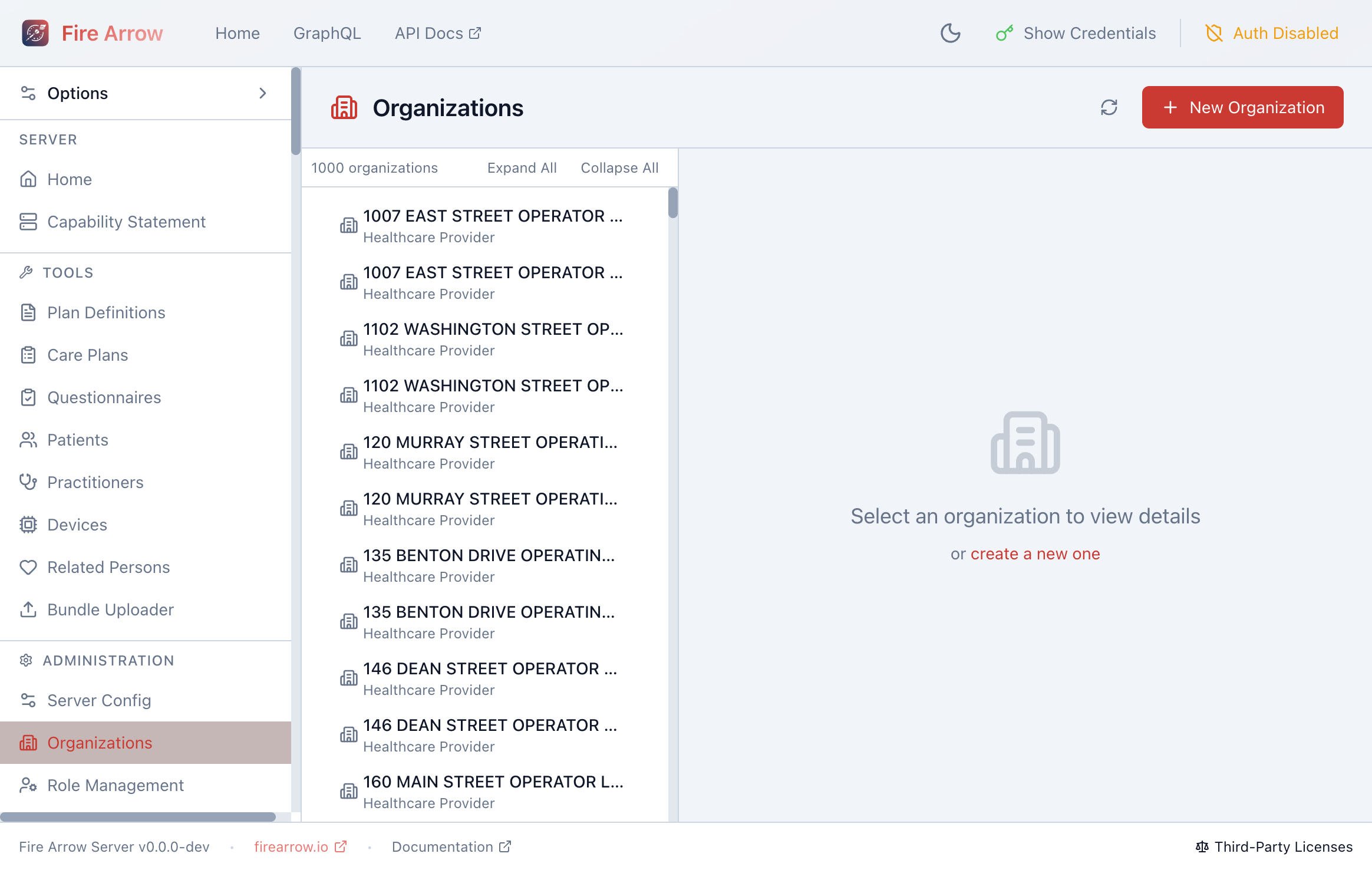
The left panel displays all organizations as a flat list with their name and type (e.g. "Healthcare Provider"). The header shows the total count and provides Expand All / Collapse All controls for hierarchical views.
Click + New Organization in the top-right corner to create a new organization.
Viewing Organization Details
Select an organization from the list to display its details in the right panel:
- Name - the display name of the organization.
- Type - the organizational type (e.g. Healthcare Provider, Hospital Department).
- Contact information - phone, email, and address.
- Part Of - the parent organization, if this organization belongs to a hierarchy.
- Identifiers - any system-specific identifiers.
Creating a New Organization
Click + New Organization and fill in:
- Organization name
- Type
- Contact details (phone, email, address)
- Parent organization (optional - to place it in a hierarchy)
- Identifiers
Click Save to create the organization resource.
Editing an Organization
Select an organization and click Edit in the detail panel. Update any fields and click Save.
Organizational Hierarchy
Organizations can reference a parent via the Part Of field, forming a tree structure. This hierarchy is used throughout the system for:
- Scoping role assignments in Role Management
- Filtering patients by managing organization
- Access control rules that restrict data visibility to specific organizations