Care Plans
A Care Plan describes how one or more practitioners (or the patient themselves) intend to deliver care for a particular patient over a period of time. While a Plan Definition is a reusable template, a Care Plan is patient-specific - it tracks the actual activities, goals, and progress for a real person in a real clinical situation.
Care Plans can range from simple (a general practitioner noting when a patient is due for a tetanus booster) to comprehensive (a multi-disciplinary oncology plan covering chemotherapy cycles, lab work, dietary guidance, counselling, and home nursing). Fire Arrow Server provides a structured editor for creating and managing Care Plans, and integrates with the Apply workflow to generate Care Plans from Plan Definition templates. Open this page from Tools > Care Plans in the sidebar.
What Are Care Plans Used For?
In the HL7 FHIR standard, a Care Plan is a request resource - it represents the intention to deliver care, and tracks the activities involved. Unlike a Plan Definition (which is a general blueprint), a Care Plan is always tied to a specific patient.
Common use cases include:
- Disease management - coordinating the ongoing care for a chronic condition such as diabetes, COPD, or heart failure, including medication schedules, lab orders, lifestyle modifications, and follow-up visits.
- Post-surgical recovery - tracking the rehabilitation steps after a procedure, from pain management and wound care to physical therapy milestones and follow-up appointments.
- Multi-disciplinary care - bringing together activities from different specialties (oncology, nursing, pharmacy, nutrition, psychology) into a single, shared plan so that all team members can see the full picture.
- Preventive care - managing screening schedules, vaccination timelines, and wellness check-ups for a patient over time.
- Mental health and behavioural plans - structuring therapy sessions, medication management, and self-care activities for conditions like depression, anxiety, or substance use disorders.
- Home and remote monitoring - defining recurring activities (daily blood pressure readings, weekly symptom questionnaires) that the patient performs at home, with clinician review at set intervals.
- Patient-authored plans - allowing patients or caregivers to document their own goals and intended actions, such as dietary changes, exercise routines, or self-management strategies.
- Prenatal and postpartum care - tracking the full journey from early pregnancy through delivery and recovery, including scheduled visits, screenings, and educational activities.
Status and Intent
Every Care Plan has two key properties that determine how it should be interpreted:
Status
The status tracks where the Care Plan is in its lifecycle:
| Status | Meaning |
|---|---|
| Draft | The Care Plan is being prepared but is not yet actionable. Activities may still be added or modified. |
| Active | The Care Plan is current and being acted upon. Activities are being performed or monitored. |
| On Hold | The Care Plan has been temporarily paused - for example, while awaiting test results or due to a change in the patient's condition. |
| Completed | All activities have been finished or the care period has ended. |
| Revoked | The Care Plan has been cancelled before completion and will not be carried out. |
| Entered in Error | The Care Plan was created by mistake and should be disregarded. |
| Unknown | The status is not known (used when information is unavailable). |
Intent
The intent indicates the level of authority behind the Care Plan:
| Intent | Meaning |
|---|---|
| Proposal | A suggestion or recommendation - for example, a Care Plan generated by a decision-support system for a clinician to review. No authorization to act. |
| Plan | The Care Plan reflects the care provider's intended approach. It represents an intention but does not formally authorize others to act on it. |
| Order | A formal request and authorization for the activities in the Care Plan to be carried out. |
| Option | The Care Plan represents one option within a larger set of choices, typically used when multiple approaches are being considered. |
When a Care Plan is generated from a Plan Definition via the Apply workflow, it is typically created with intent Plan and status Draft, so that a clinician can review and activate it.
List View
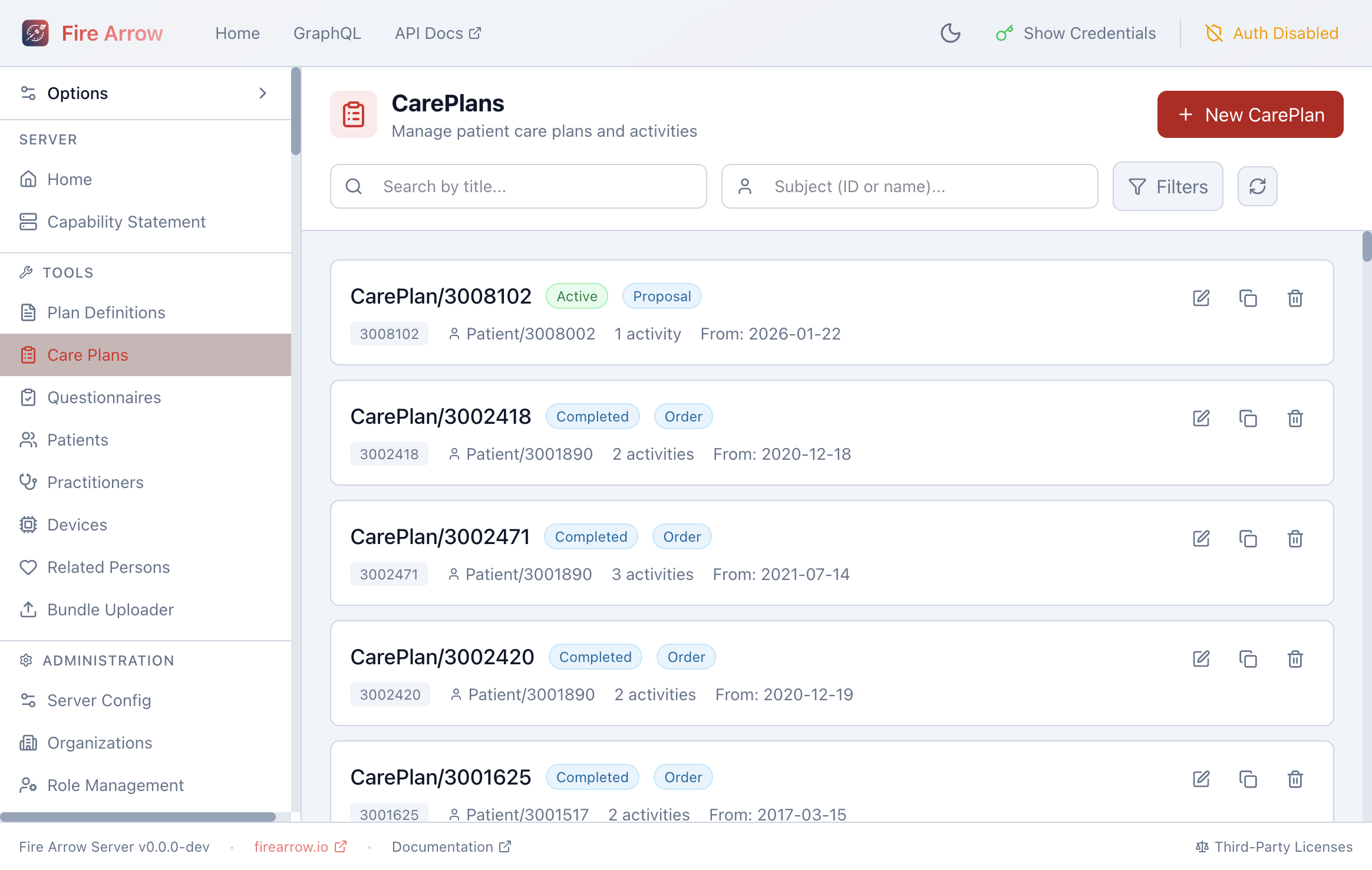
The list shows all Care Plans with:
- Title or ID (e.g. "Diabetes Management" or "CarePlan/3008102").
- Status badges - the overall status (Active, Completed, etc.) and intent (Proposal, Plan, Order).
- Subject - the patient the Care Plan belongs to.
- Activity count - how many activities are in the plan.
- Period - the start date of the Care Plan.
Use the search bar to filter by title, and the Subject field to search by patient ID or name. The Filters button lets you narrow results by status.
Each entry has action icons for Edit, Duplicate, and Delete. Deleting a Care Plan can optionally cascade to remove associated Task resources.
Click + New Care Plan to create a Care Plan from scratch.
Care Plan Editor
Click the edit icon to open the Care Plan editor. The editor is divided into three areas: an activities panel on the left, a center area that switches between an overview, a tasks view, a JSON editor, and a validation panel, and a detail panel on the right.
Metadata
When no activity is selected, the right panel shows the Care Plan's metadata:
| Field | Purpose |
|---|---|
| Title | Human-readable name for the Care Plan (e.g. "Post-Knee Replacement Recovery"). |
| Description | A summary of what the Care Plan covers and its clinical context. |
| Status | The lifecycle status (see above). |
| Intent | The level of authority (see above). |
| Subject | The patient this Care Plan is for. Search by name or patient ID. |
| Period | The time window the Care Plan covers - start and end dates with optional times and timezone. |
| Created | The date the Care Plan was first recorded, with optional timezone. |
| Category | A free-text label describing the type of plan. Common values include assess-plan, treatment, education, and administrative. |
| Encounter | The clinical encounter during which the Care Plan was created (if applicable). |
| Author | The person or organization responsible for the Care Plan. Supports references to Practitioners, PractitionerRoles, Organizations, Patients, Related Persons, Devices, and Care Teams. |
| Outcome | A free-text description of the Care Plan's outcome, useful for summarizing results after the plan is completed. |
Conditions Addressed
The Conditions Addressed section lets you link the Care Plan to specific clinical conditions (FHIR Condition resources) that the plan is intended to manage. For example, a diabetes management Care Plan would reference the patient's Diabetes Mellitus condition.
This makes it possible to:
- Find all Care Plans for a specific diagnosis.
- Understand why a particular set of activities was chosen.
- Coordinate care across multiple conditions.
Care Team
Link one or more CareTeam resources to indicate who is involved in delivering the care. A care team might include the primary physician, nurses, pharmacist, social worker, and any other professionals collaborating on the patient's care.
Contributors
Add references to individuals or organizations who contributed to creating the Care Plan content. Contributors can be Practitioners, PractitionerRoles, Organizations, Patients, Related Persons, Devices, or Care Teams.
Goals
Link the Care Plan to Goal resources that describe the desired outcomes. Goals can be defined at two levels:
- Care Plan level - overall goals for the entire plan (e.g. "Reduce HbA1c below 7% within 6 months" or "Patient able to walk 500m unassisted within 3 months").
- Activity level - goals specific to an individual activity (e.g. "Complete 10 physical therapy sessions").
Supporting Information
Attach references to resources that informed the Care Plan. The editor supports a wide range of resource types:
- Clinical documents: DocumentReference, Composition, Bundle
- Observations and diagnostics: Observation, DiagnosticReport, ImagingStudy
- Patient history: AllergyIntolerance, FamilyMemberHistory, Immunization, MedicationStatement, Procedure
- Questionnaire responses: QuestionnaireResponse
- Consent and media: Consent, Media
This is useful for linking to the assessment results, lab reports, or clinical guidelines that justified the Care Plan.
Activities
Activities are the core of a Care Plan - they represent the individual steps, orders, tasks, and actions that make up the plan.
Adding and Organizing Activities
- Click + in the activities panel (or use Ctrl/Cmd+N) to add a new activity.
- Right-click an activity to Duplicate, Copy, Cut, Paste, or Delete it.
- Drag activities to reorder them.
Activity Modes
Each activity can be configured in one of two modes:
Inline Detail - define the activity's details directly within the Care Plan. This is the default mode for activities created in the editor.
Reference - link the activity to an existing request resource on the server (such as a ServiceRequest, MedicationRequest, or Task that was created separately). The supported reference types are:
| Resource Type | Typical Use |
|---|---|
| ServiceRequest | Lab orders, imaging orders, referrals, procedures |
| MedicationRequest | Prescriptions and medication orders |
| Task | Generic tasks to be performed |
| Appointment | Scheduled visits and consultations |
| CommunicationRequest | Requests to send information (e.g. patient education materials, notification to a specialist) |
| DeviceRequest | Requests for medical devices (e.g. CPAP machine, glucose monitor) |
| NutritionOrder | Dietary orders and nutritional plans |
| VisionPrescription | Prescriptions for corrective lenses |
Activity Detail Fields
When using inline detail mode, each activity has the following properties:
| Field | Purpose |
|---|---|
| Description | What needs to be done (e.g. "Check fasting blood glucose" or "Complete PHQ-9 questionnaire"). |
| Status | The progress of this specific activity (see table below). |
| Kind | The type of request this activity represents. |
| Code | A short text code describing the activity. |
| Do Not Perform | A flag indicating that this activity should explicitly not be done (e.g. "Do not administer aspirin" for a patient with an allergy). |
Activity Status
Each activity tracks its own progress independently from the overall Care Plan status:
| Status | Meaning |
|---|---|
| Not Started | The activity has not begun. |
| Scheduled | The activity is planned for a future date. |
| In Progress | The activity is currently underway. |
| On Hold | The activity has been temporarily paused. |
| Completed | The activity has been finished. |
| Cancelled | The activity was cancelled before completion. |
| Stopped | The activity was stopped after it had started. |
| Entered in Error | The activity was recorded by mistake. |
| Unknown | The activity status is not known. |
Scheduling Activities
Activities can be scheduled using two approaches:
- Free-text schedule - a plain-language description of when the activity should occur (e.g. "Every morning before breakfast" or "After discharge, within 2 weeks").
- Date range - specific start and end dates with optional times and timezones, defining a precise window during which the activity should be performed.
For complex recurring schedules (e.g. "twice daily at 08:00 and 20:00 for 4 weeks"), consider defining the schedule in a Plan Definition and using the Apply workflow, which supports full FHIR Timing with repeat rules. The generated Care Plan will carry over the scheduling details.
Performers
Specify who should carry out the activity. Each performer can be a Practitioner, PractitionerRole, Organization, CareTeam, Patient, or Related Person. For example:
- A blood draw activity might list a specific lab technician.
- A home exercise activity might list the patient themselves.
- A medication review might list the patient's pharmacist.
Location
Link the activity to a Location resource to indicate where it should take place (e.g. a specific clinic, ward, or the patient's home).
Products and Quantities
For activities that involve medications or supplies, you can specify:
- Product - either as a text description or a reference to a Medication or Substance resource.
- Daily Amount - the amount to be consumed or administered per day (value and unit).
- Quantity - the total quantity to be supplied (value and unit).
This is commonly used for medication activities (e.g. "Metformin 500mg, 2 tablets daily, supply 60 tablets") and nutritional activities.
Reason
Document why the activity is needed:
- Reason codes - free-text reasons for the activity.
- Reason references - links to Condition, Observation, or DiagnosticReport resources that justify the activity.
Activity Goals
Link the activity to specific Goal resources to indicate which outcomes this activity contributes to.
Progress Notes
Add timestamped notes to track the activity's progress over time. Each note records free text and the date it was written. Use progress notes to document:
- Updates on how the activity is going.
- Reasons for status changes (e.g. why an activity was put on hold).
- Observations made during the activity.
Request Groups
When a Care Plan is generated from a Plan Definition (via the Apply workflow), its activities may be organized into Request Groups - structured containers that preserve the action hierarchy, sequencing, and behavior rules from the original template.
A Request Group appears as a special activity in the activities panel. Click it to expand its nested actions. Each Request Group has its own:
- Status - draft, active, on-hold, revoked, completed, entered-in-error, or unknown.
- Intent - proposal, plan, directive, order, original-order, reflex-order, filler-order, instance-order, or option.
- Timing - repeat schedules with frequency, period, bounds, and event timing codes.
Request Groups maintain the rich structure of the Plan Definition (grouping, sequencing, conditions) while being patient-specific and actionable.
Tasks and Scheduling
The Tasks tab in the center area shows Task resources that have been created from this Care Plan's activities. This is where Fire Arrow Server's CarePlan Events system comes to life.
Materializing Tasks
When a Care Plan has recurring activities (e.g. "daily blood pressure check"), Fire Arrow Server can automatically materialize individual Task resources for each occurrence within a rolling time horizon. Each Task has a specific execution period and progresses through statuses (draft, ready, completed) as time passes.
To enable task materialization for a Care Plan:
- Open the Care Plan editor.
- Click Materialize in the header toolbar.
- In the dialog, provide a webhook endpoint URL where your application will receive notifications when tasks become due (or skip this to use polling instead).
- Confirm to start the scheduling process.
Once materialization is active, the header shows Renew and Stop buttons:
- Renew - extend the scheduling subscription (e.g. if it's approaching expiry).
- Stop - disable task materialization and unsubscribe from notifications.
The Tasks tab displays all materialized tasks with their status, execution period, and related activity. See the CarePlan Events documentation for full details on the scheduling system, webhook notifications, and configuration.
JSON Editor
The JSON tab provides direct access to the full FHIR CarePlan resource in JSON format. Every field in the FHIR specification is available here, including fields not exposed in the structured forms (such as instantiatesCanonical, basedOn, replaces, partOf, and note). Changes in the JSON editor are reflected in the structured editor and vice versa.
To link a Care Plan back to the Plan Definition it was generated from, set instantiatesCanonical to the Plan Definition's canonical URL in the JSON editor. The Apply workflow does this automatically.
Validation
The Validate tab checks the Care Plan for potential issues:
- Errors - required fields that are missing (status, intent, subject).
- Warnings - recommended fields that are empty (title, description, period, at least one activity or goal).
- Info - suggestions for improvement (period ordering, status consistency between the Care Plan and its activities).
Fix any reported errors before saving. Warnings and informational notes are advisory and will not prevent the Care Plan from being saved.
Relationship to Plan Definitions
Care Plans and Plan Definitions work together as a template-to-instance pair:
- A Plan Definition is the reusable blueprint - "this is how we manage condition X."
- A Care Plan is the patient-specific instance - "this is how we are managing condition X for patient Y."
When a Care Plan is generated via the Apply workflow, it maintains a reference back to the source Plan Definition. This link allows you to:
- Trace provenance - see which template was used to create the Care Plan.
- Compare against the template - understand where the patient's actual care diverges from the standard protocol.
- Update the plan - if the Plan Definition is revised (e.g. new clinical guidelines), you can re-apply it to generate an updated Care Plan.
Care Plans can also be created entirely from scratch without a Plan Definition, which is useful for ad-hoc care coordination or patient-specific situations that don't fit a standard template.
Clinical Examples
The following examples illustrate how Care Plans can model real-world clinical scenarios.
Example 1: Diabetes Management
A primary care physician creates a Care Plan for a patient newly diagnosed with Type 2 diabetes:
- Status: Active | Intent: Plan
- Conditions addressed: Type 2 Diabetes Mellitus
- Goals: HbA1c below 7% within 6 months; BMI reduction to 25
- Care team: Primary physician, endocrinologist, dietitian, diabetes educator
- Activities:
- HbA1c lab test every 3 months (status: scheduled)
- Metformin 500mg twice daily (status: in progress, product: Metformin, daily amount: 1000mg)
- Dietary consultation (status: not started, performer: dietitian)
- Daily blood glucose self-monitoring (status: in progress, performer: patient)
- Follow-up appointment in 3 months (status: scheduled)
Example 2: Post-Surgical Rehabilitation
An orthopedic surgeon creates a Care Plan after a knee replacement:
- Status: Active | Intent: Order
- Period: Surgery date through 12 weeks post-op
- Conditions addressed: Status post total knee arthroplasty
- Goals: Full weight-bearing walking within 8 weeks; 90-degree knee flexion within 6 weeks
- Activities:
- Pain assessment every 4 hours for 48 hours (status: in progress)
- Wound care daily for 2 weeks (status: scheduled, performer: home nursing)
- Physical therapy sessions 3 times per week for 8 weeks (status: not started, performer: physiotherapist)
- Post-op X-ray at 6 weeks (status: not started, kind: ServiceRequest)
- Orthopaedic follow-up at 2, 6, and 12 weeks (status: scheduled)
Example 3: Mental Health Treatment Plan
A psychiatrist and therapist collaborate on a Care Plan for a patient with major depressive disorder:
- Status: Active | Intent: Plan
- Category: treatment
- Conditions addressed: Major Depressive Disorder, recurrent
- Goals: PHQ-9 score below 5 within 3 months; return to full-time work
- Care team: Psychiatrist, psychologist, social worker
- Activities:
- Sertraline 50mg daily (status: in progress, product: Sertraline)
- CBT sessions weekly for 12 weeks (status: in progress, performer: psychologist)
- PHQ-9 questionnaire every 2 weeks (status: scheduled, performer: patient)
- Medication review at 4 weeks (status: not started, performer: psychiatrist, reason: assess response to SSRI)
- Social support assessment (status: not started, performer: social worker)
Example 4: Home Monitoring with Automated Scheduling
A telehealth nurse creates a Care Plan for remote blood pressure monitoring, leveraging Fire Arrow Server's CarePlan Events system:
- Status: Active | Intent: Plan
- Period: 3 months
- Goals: Systolic blood pressure consistently below 140 mmHg
- Activities:
- Daily blood pressure reading at 08:00 (schedule: once per day for 3 months)
- Weekly nurse review on Mondays (schedule: once per week)
- Medication adjustment if readings trend high (status: not started, do not perform: false)
- Task materialization: Enabled - the server creates individual Task resources for each blood pressure reading and each nurse review, sends webhook notifications when they become due, and the patient's mobile app fetches the Task to prompt the measurement.